- Improve Efficiency P5 dual monitor extender supports extended, duplicated, portrait display mode, which can solve the trouble of not enough screen/too small screen/repeatedly cut screen. Easily multitasking and increasing work efficiency up to 200%. It can also share the screen with partners in scenarios such as meetings or studying, perfect for anyone who needs a more efficient workflow, like remote/mobile office workers, stock traders, programmers, designers, students/gamers, etc.
- Plug and Play & Portable Portable Monitor for Laptop comes with all the required cables (Type-C cable*1, HDMI cable*1, USB-A cable*1), plug and play, easy to connect with laptop, no need to download additional drivers. Dual monitor for laptop has a slim body that folds into a compact size for easy storage in your laptop bag. Perfect for those who value both efficiency and mobility when traveling, working and gaming.
- Personalized Details Portable Dual Screen Extender comes with a detachable stand that supports 360° rotation angle and provides stable support. There are mounting holes on both the main stand and the screen, and the screen supports horizontal/vertical use after removal, which enhances portability while diversifying functionality. The back cover of the screen adopts fully transparent design, and the components are precisely arranged in the transparent body, which is interesting and cool. Comes with personalized seven-color breathing light, the brightness is soft and not harsh.
- Wide Compatibility & Customer Support Kefeya extender monitor for laptop is compatible with a variety of laptops (13-17.3" diagonal) and multiple operating systems, such as MAC/Windows/Android/Linux/Chrome OS system; With one year warranty, if you encounter connection problems or other situations, please contact our after-sales team directly, we will provide you with satisfactory solutions.
-


Connection Methods:


OUT OF STOCK
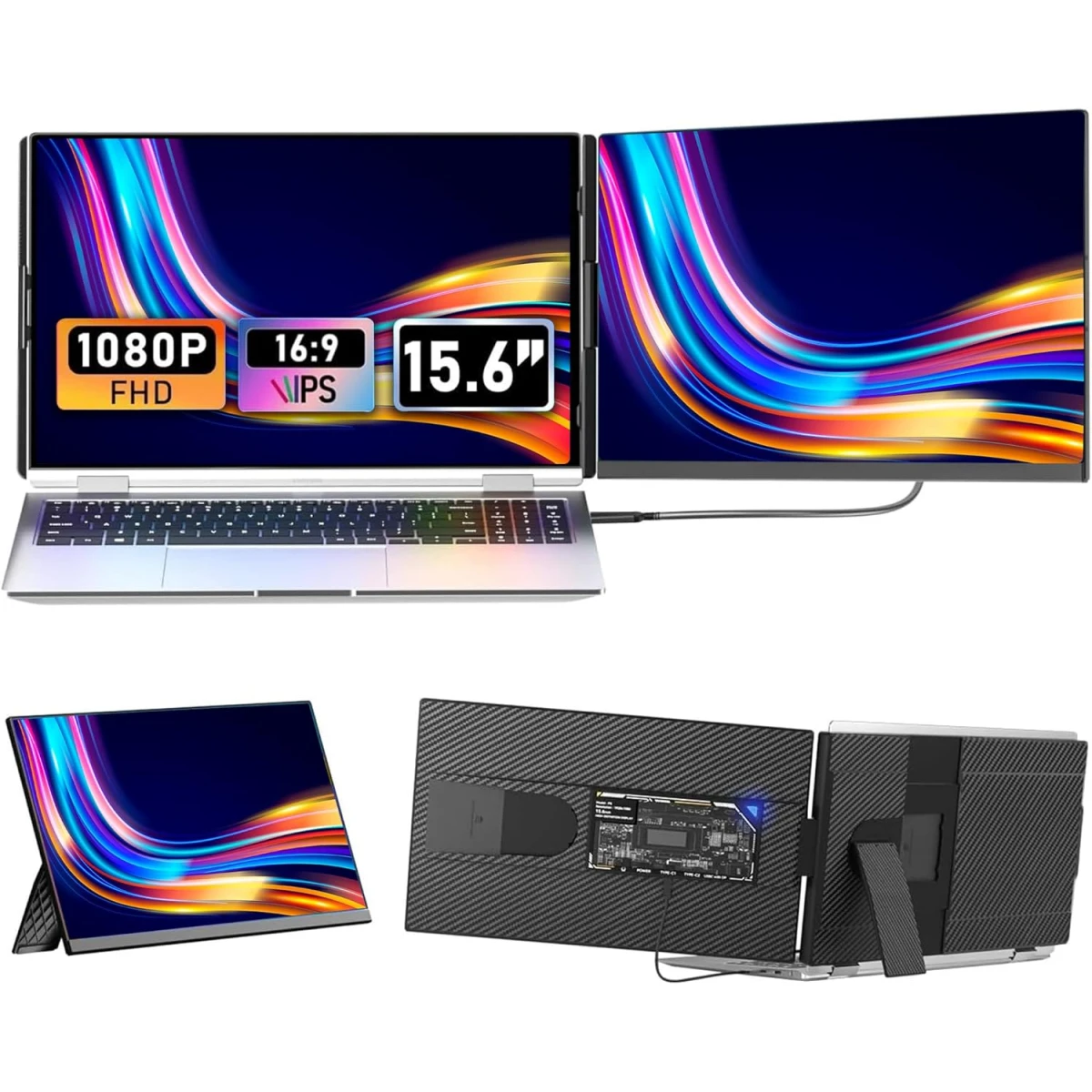
V2COM P5 15.6" IPS Full HD Portable Laptop Screen Extender, Detachable IPS Monitor for 13-17.3" Laptops, Plug & Play with Breath Light, Compatible with Windows, Mac, Android, Switch, and PS5
119.00 JOD
SKU: V2COM P5
- Rich Visual Experience P5 15.6" full-screen bezel-less laptop screen extender provides a larger graphic display area for improved viewing experience, ease of operation and interaction. 1080P resolution, 300 nits of brightness, 1000:1 contrast ratio, a built-in speaker, HD and vivid image quality, immersive audio-visual feasts. Meanwhile, the low blue light design of the laptop monitor extender can protect your eyes and relieve visual fatigue. Supporting independent adjustment of brightness, sound and contrast, everything is under control.
V2COM P5 15.6" IPS Full HD Portable Laptop Screen Extender, Detachable IPS Monitor for 13-17.3" Laptops, Plug & Play with Breath Light, Compatible with Windows, Mac, Android, Switch, and PS5
119.00 JOD
SKU: V2COM P5
- Rich Visual Experience P5 15.6" full-screen bezel-less laptop screen extender provides a larger graphic display area for improved viewing experience, ease of operation and interaction. 1080P resolution, 300 nits of brightness, 1000:1 contrast ratio, a built-in speaker, HD and vivid image quality, immersive audio-visual feasts. Meanwhile, the low blue light design of the laptop monitor extender can protect your eyes and relieve visual fatigue. Supporting independent adjustment of brightness, sound and contrast, everything is under control.
119.00 JOD
Quantity
Add to CartBuy Now- Improve Efficiency P5 dual monitor extender supports extended, duplicated, portrait display mode, which can solve the trouble of not enough screen/too small screen/repeatedly cut screen. Easily multitasking and increasing work efficiency up to 200%. It can also share the screen with partners in scenarios such as meetings or studying, perfect for anyone who needs a more efficient workflow, like remote/mobile office workers, stock traders, programmers, designers, students/gamers, etc.
- Plug and Play & Portable Portable Monitor for Laptop comes with all the required cables (Type-C cable*1, HDMI cable*1, USB-A cable*1), plug and play, easy to connect with laptop, no need to download additional drivers. Dual monitor for laptop has a slim body that folds into a compact size for easy storage in your laptop bag. Perfect for those who value both efficiency and mobility when traveling, working and gaming.
- Personalized Details Portable Dual Screen Extender comes with a detachable stand that supports 360° rotation angle and provides stable support. There are mounting holes on both the main stand and the screen, and the screen supports horizontal/vertical use after removal, which enhances portability while diversifying functionality. The back cover of the screen adopts fully transparent design, and the components are precisely arranged in the transparent body, which is interesting and cool. Comes with personalized seven-color breathing light, the brightness is soft and not harsh.
- Wide Compatibility & Customer Support Kefeya extender monitor for laptop is compatible with a variety of laptops (13-17.3" diagonal) and multiple operating systems, such as MAC/Windows/Android/Linux/Chrome OS system; With one year warranty, if you encounter connection problems or other situations, please contact our after-sales team directly, we will provide you with satisfactory solutions.
-
Connection Methods:
Display
Screen Size:
15.6"
Resolution:
FULL HD
Panel Type:
IPS

















Recently Viewed
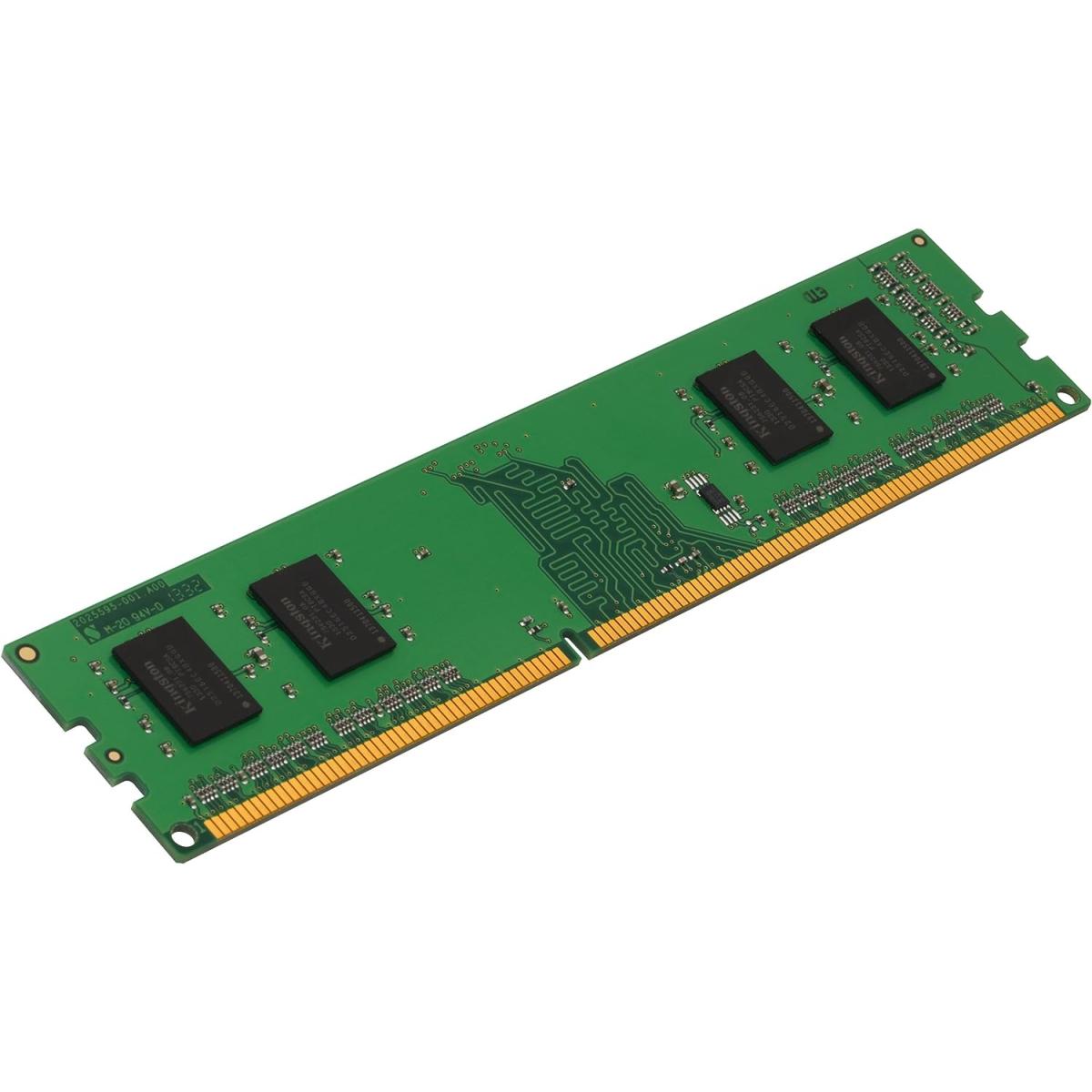
Memory Module / RAM
Kingston Value Ram Single 8GB DDR4-3200Mhz CL22 SDRAM Desktop Memory69.00 JOD
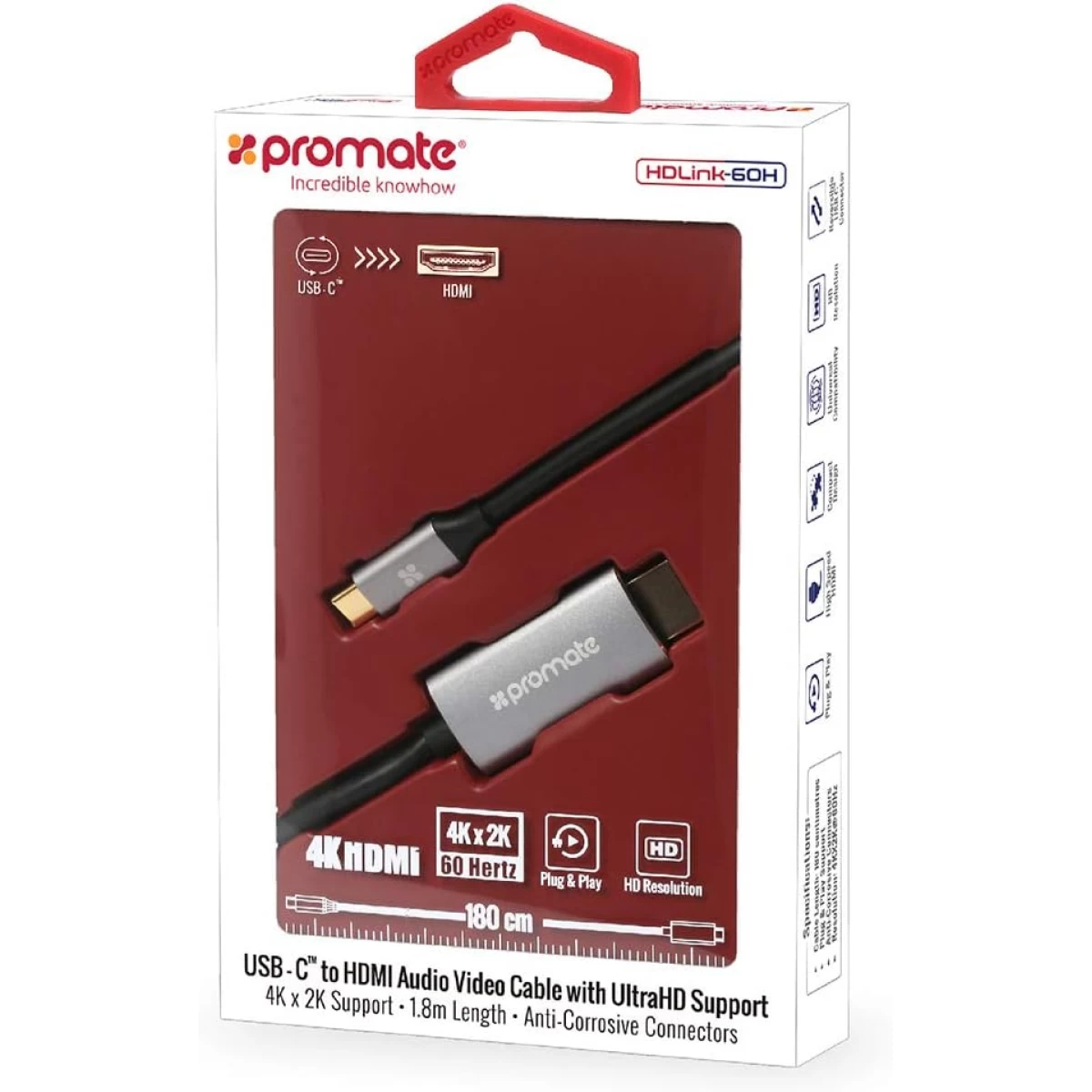
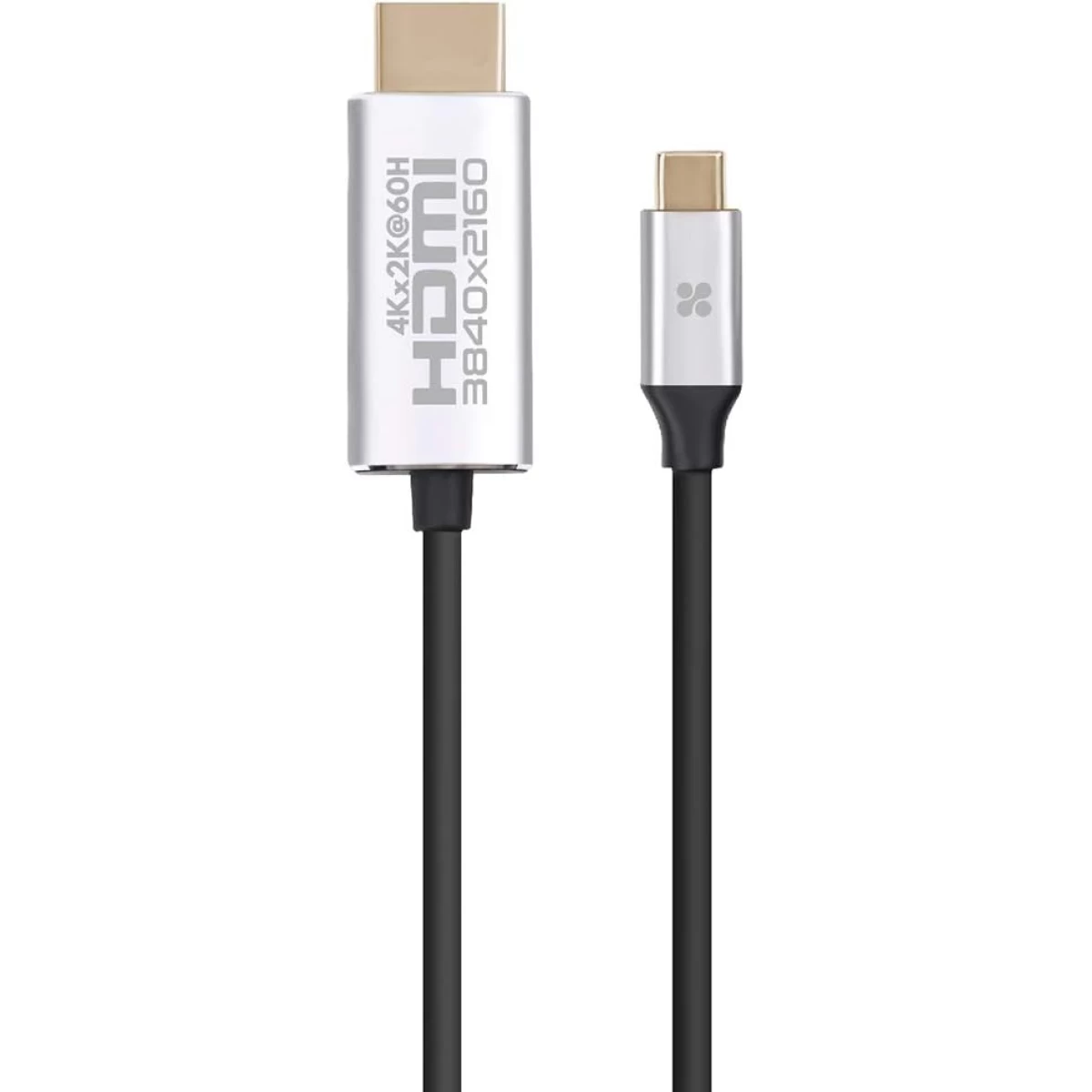
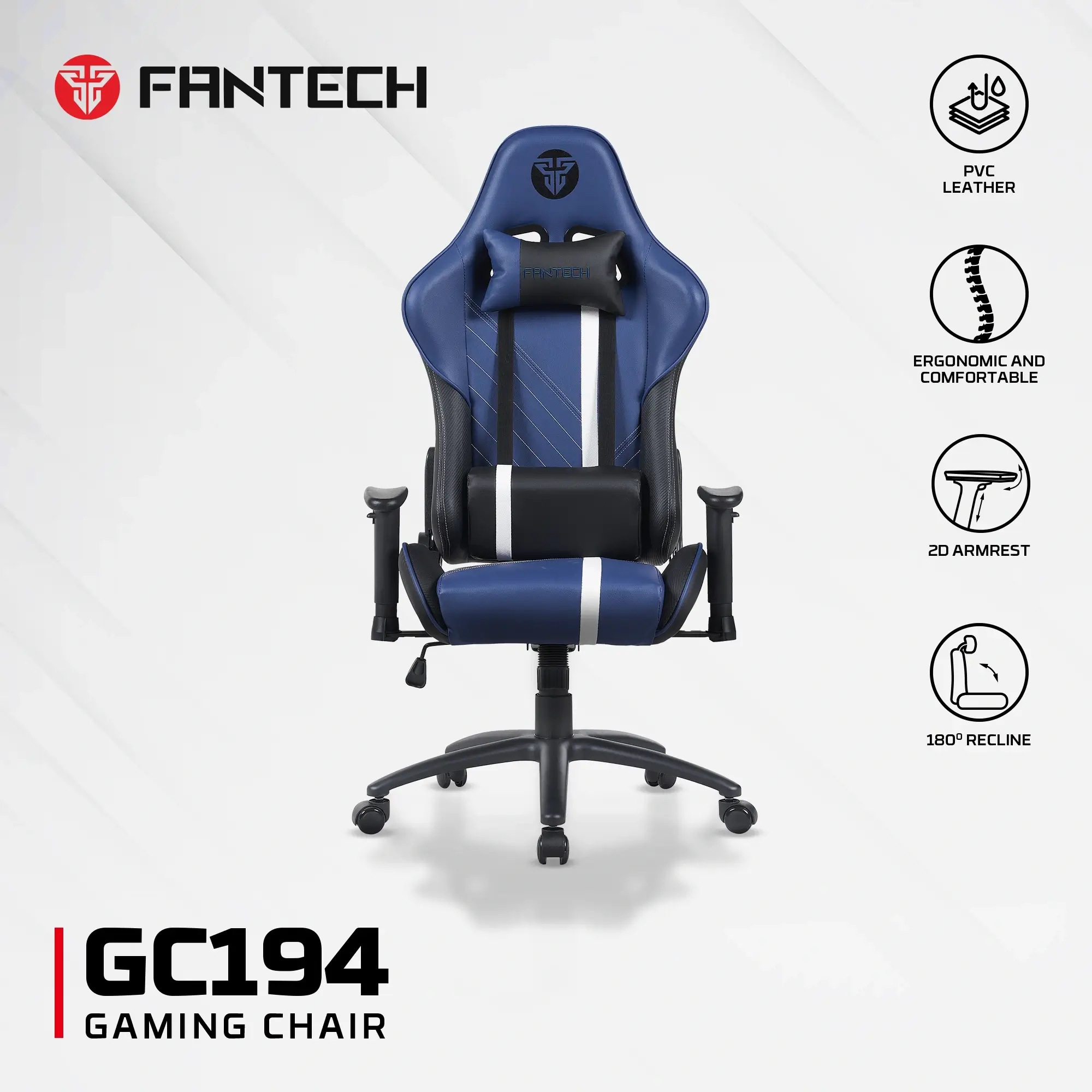
Gaming Chairs and Desk
FANTECH GC194 GAMING CHAIR BLUE109.00 JOD
Shopping cart
Your cart is curently empty
Let up help you find the perfect item
Show All Shop
Compare
Products
Your compare is curently empty